Experiment 1 - Adding rotation#
In this experiment, we will enable the effects of rotation.
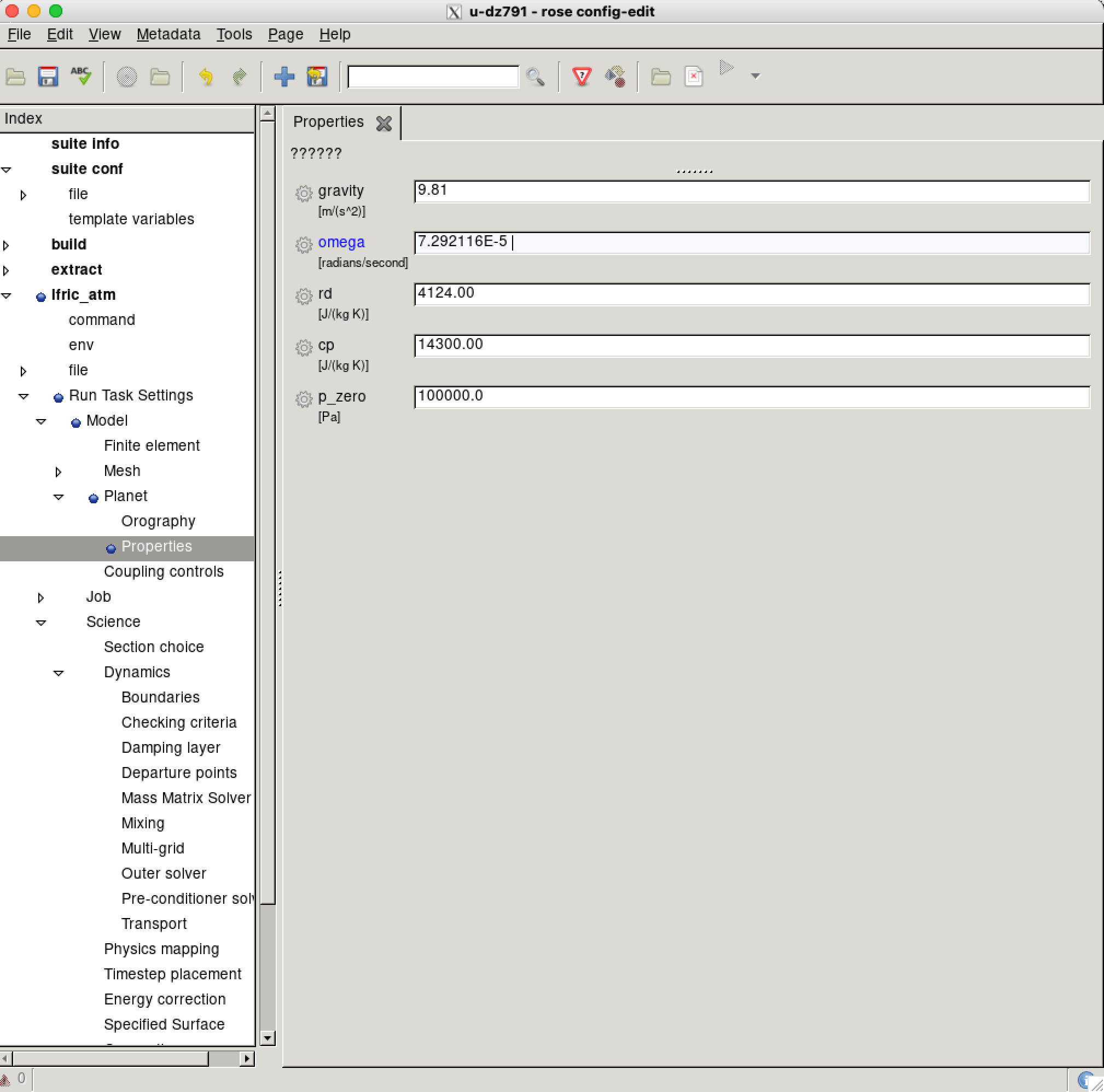
Note that even though the rotation rate is non-zero:
[namelist:planet]
cp=14300.00
gravity=9.81
omega=7.292116E-5
p_zero=100000.0
rd=4124.00
scaling_factor=1.0
rotation is actually switched off in the equations formulation section:
[namelist:formulation]
dlayer_on=.true.
dry_static_adjust=.true.
eos_method='sampled'
exner_from_eos=.false.
horizontal_physics_predictor=.false.
horizontal_transport_predictor=.false.
init_exner_bt=.true.
l_multigrid=.true.
lagged_orog=.true.
moisture_formulation='traditional'
moisture_in_solver=.true.
p2theta_vert=.true.
rotating=.false.
shallow=.true.
si_momentum_equation=.false.
theta_moist_source=.true.
use_multires_coupling=.false.
use_physics=.true.
use_wavedynamics=.true.
vector_invariant=.false.
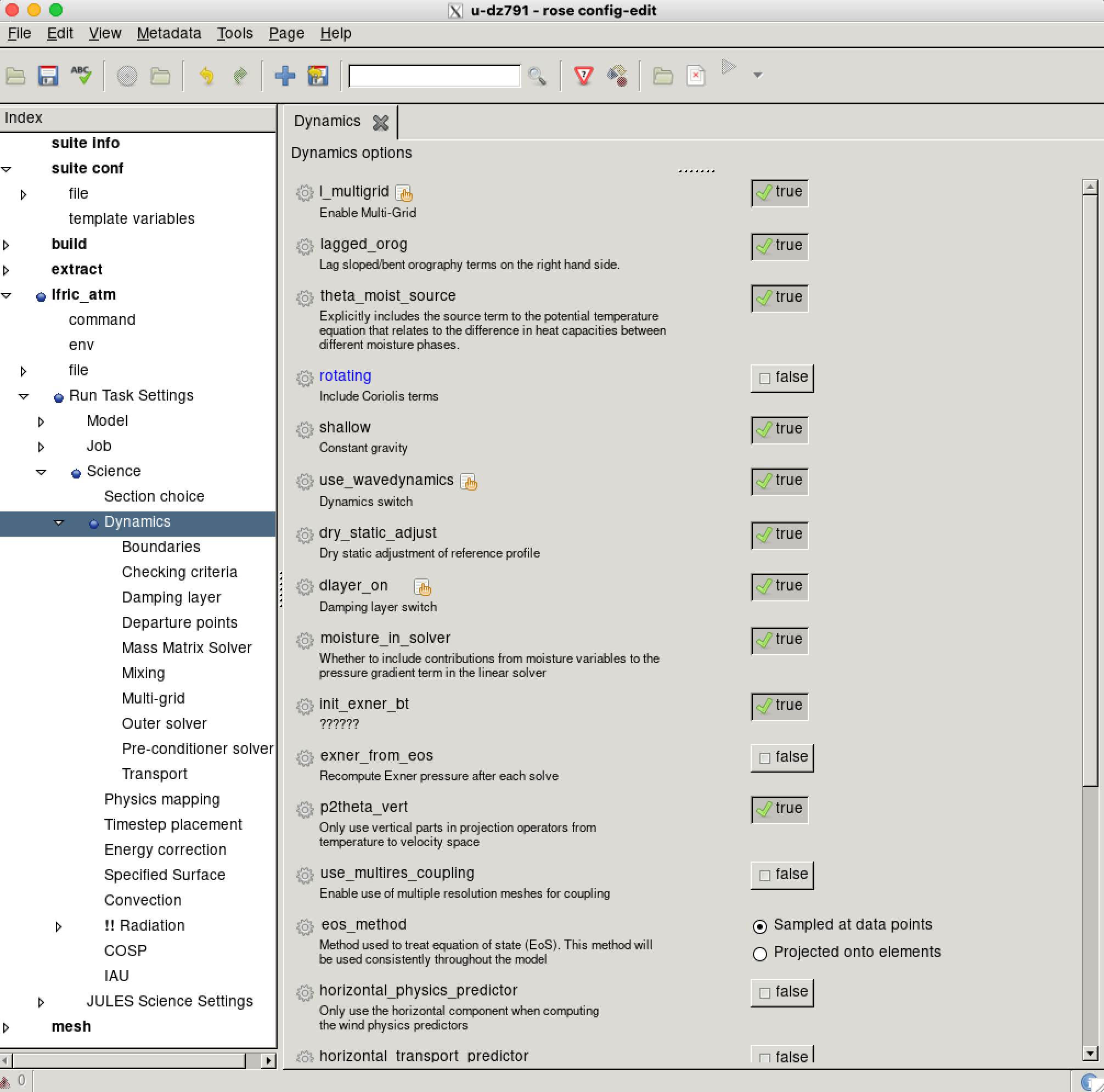
So we first enable rotation and then we can also play with the rotation rate.
Step 1: Switch on rotation#
Open Rose GUI or
app/lfric_atm/rose-app.confin a text editor of your choice.
Running graphical applications over SSH
If you are connected to a remote system over SSH, graphical applications need X11 forwarding to display on your computer. Start an X server on your computer first (for example, XQuartz on macOS), then connect from a terminal using generic host details supplied by your service:
ssh -AY <remote-host>
Repeat the options for every additional SSH hop. The -Y option enables
trusted X11 forwarding. The -A option forwards your SSH authentication
agent and should only be used with systems you trust. A terminal integrated
into an editor such as VS Code works in the same way as any other terminal.
On the system where you will start the graphical application, run
echo "$DISPLAY". It should return a value. If it is blank, disconnect
and reconnect with X11 forwarding enabled at every hop before continuing.
rose edit &
See also
For help choosing the correct Monsoon3 service and finding the official setup guidance, see Using Monsoon3.
rose edit &
Note
You must be on the Cylc host to run rose edit. It is not
available on the compute nodes. X11 forwarding must be enabled on
every hop, including the lander and the Cylc host.
Note
“Other” means your own machine, or a system run by another institution. You provide the environment yourself. See Choosing your platform.
rose edit &
What does the rose edit & command do?
This command opens the suite in the Rose graphical user interface, allowing you to view and modify its configuration.
The
&at the end runs the GUI in the background, so your terminal remains available for other commands.
Search for the
rotatingkey.Change it to
.true..
Step 2: Run the model#
Now run the model using what you have learnt in the previous exercises. Check the output using Python or another tool of your choice.
Step 3. Compare with the control experiment#
Using a Python script or Jupyter Notebook, make plots for both experiments and compare them to each other to see the effect of rotation.