Using Jupyter notebooks#
Some practical exercises in this course are delivered as Jupyter notebooks.
This page is for learners who are new to Python, JupyterLab, or .ipynb
notebook files.
What you are starting#
JupyterLab is a browser-based workspace for writing notes, running code, and viewing results. A notebook is a document made from cells:
Markdown cells contain text, equations, links, and instructions.
Code cells contain Python commands that can be run interactively.
A kernel is the Python process that runs the code cells.
A Python environment contains the packages available to the kernel.
Important
For the mesh tutorial practical, you must use the kernel that matches the environment from the setup steps:
Ensure that you use
module load scitoolsUse scitools as your kernel.
Ensure that you use
module load scitoolsUse scitools as your kernel.
Build your own environment Python (lfric-mesh),
and use that kernel.
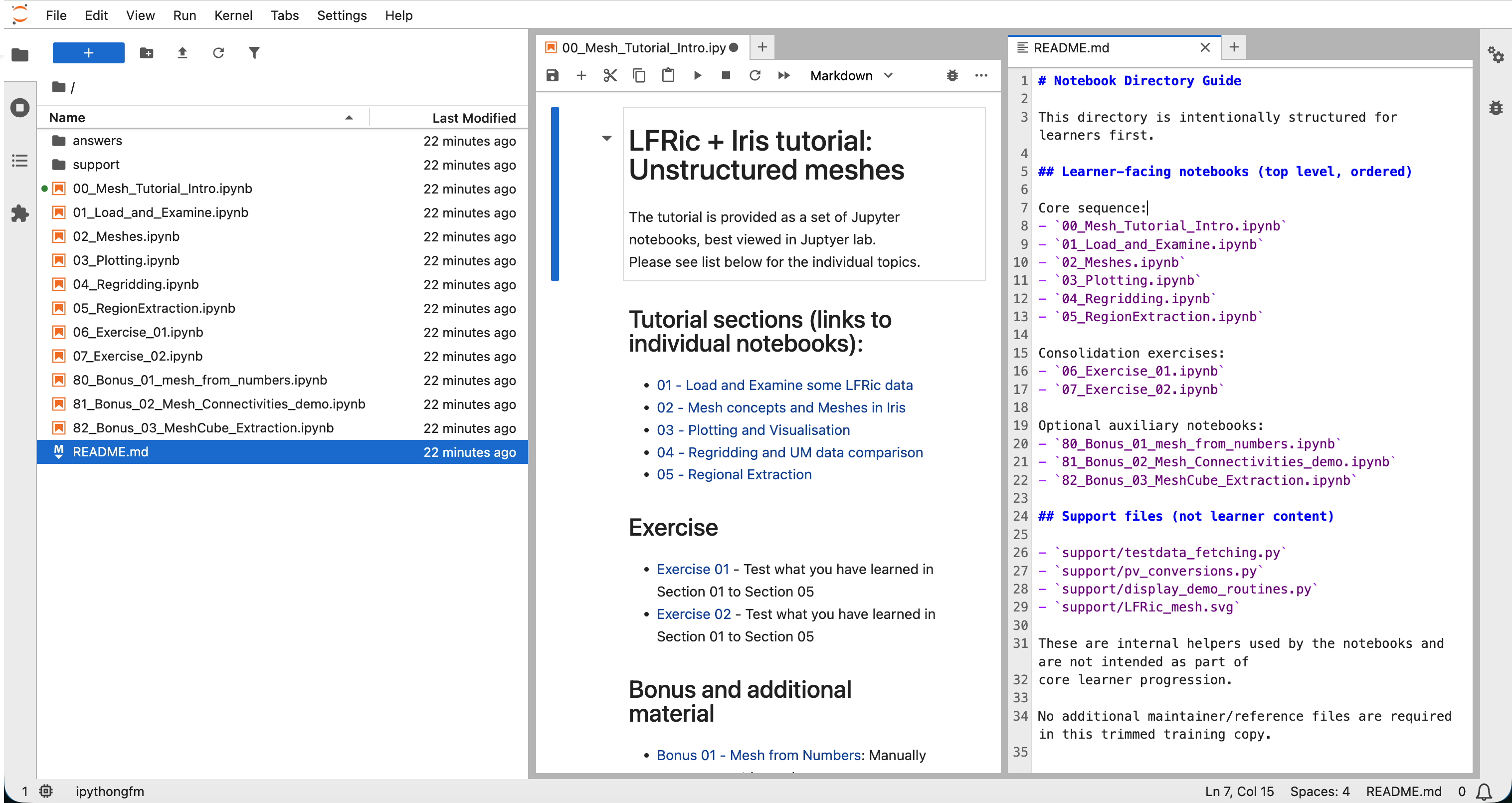
Fig. 40 JupyterLab workspace showing the menu bar, file browser, notebook area, and open panels.#
Before launching JupyterLab#
Before starting a notebook, make sure you have:
A local copy of the training repository.
A Python environment with the notebook dependencies available.
A Jupyter kernel for that environment.
For the mesh tutorial, the setup commands are given in the practical using unstructured data. Complete those setup steps once before launching JupyterLab.
Launching the mesh tutorial notebooks#
Open a terminal and move to the root of the training repository. If your repository is somewhere else, replace the path in the first command with your local path:
cd /path/to/LFRic-Atmosphere-Training
Make the tutorial environment available:
module load scitools
See also
For help choosing the correct Monsoon3 service and finding the official setup guidance, see Using Monsoon3.
module load scitools
Note
“Other” means your own machine, or a system run by another institution. You provide the environment yourself. See Choosing your platform.
Use your preferred environment manager to create an environment and install these tools. A typical workflow might be:
conda create -n my_env python
conda activate my_env
conda install -c conda-forge iris dask numpy matplotlib
See also
Move into the notebook directory:
cd notebooks/iris-mesh-tutorial/notebooks
Start JupyterLab:
jupyter lab
JupyterLab normally opens in a browser tab automatically. If it does not, copy
the local URL printed in the terminal into your browser. It will usually start
with http://localhost: and may include a token= value. Treat that URL as
private while the notebook server is running.
Important
Start JupyterLab from notebooks/iris-mesh-tutorial/notebooks when working
through the mesh tutorial. Several notebooks use paths relative to this
directory.
Opening and running a notebook#
In the JupyterLab file browser, open the first tutorial notebook:
00_Mesh_Tutorial_Intro.ipynb.If JupyterLab asks you to select a kernel, choose the one for your environment: the default Python 3 kernel under
scitools, orPython (lfric-mesh)for a conda environment.If the notebook has already opened with a different kernel, use
Kernel -> Change Kernelto switch.Read each Markdown cell, then run the next code cell.
To run a cell, click in it and press
Shift+Enter. You can also use the run button in the notebook toolbar.Wait for a cell to finish before running the next one. A cell marked
[*]is still running. A finished code cell is given a number such as[3].Save your work with
File -> Save NotebookorCtrl+S.
Run notebooks from top to bottom unless the instructions say otherwise. Code cells can depend on variables created by earlier cells, so running cells out of order can produce confusing errors.
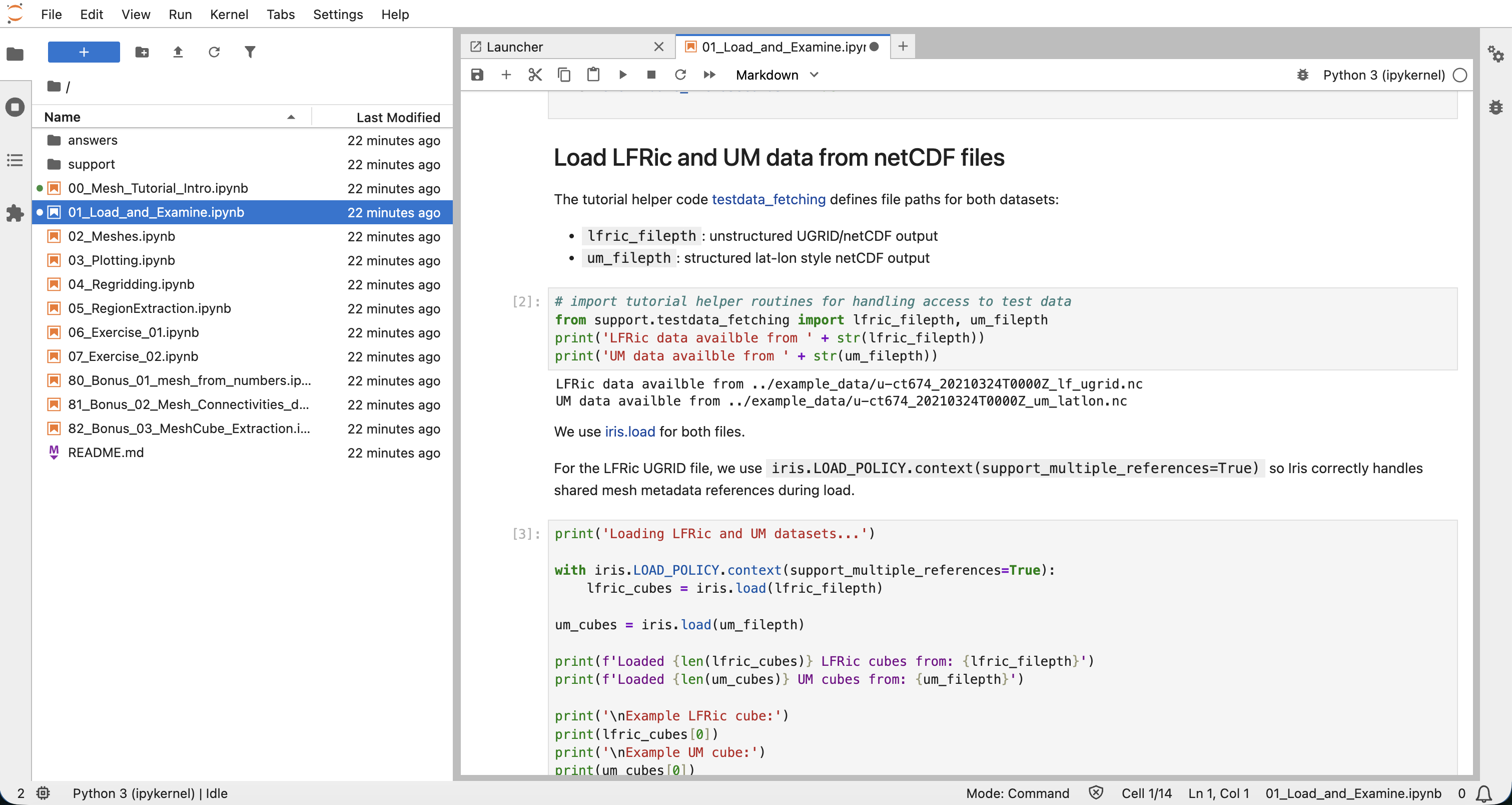
Fig. 41 Notebook view showing Markdown text, code cells, outputs, the toolbar, the selected kernel, and the notebook status bar.#
Restarting and stopping#
Use these actions when a notebook gets into an unexpected state:
Kernel -> Interrupt Kernelstops the currently running cell.Kernel -> Restart Kernelclears Python variables and starts the kernel again.Run -> Run All Cellsreruns the notebook from the top after a restart.Kernel -> Shut Down Kernelstops the Python process for the active notebook.
When you have finished:
Save any notebooks you changed.
Shut down any running kernels you no longer need.
Return to the terminal where
jupyter labis running.Press
Ctrl+Cto stop the JupyterLab server.Close the browser tab.
Closing the browser tab alone does not necessarily stop the server or the notebook kernels.
Common problems#
Symptom |
What to try |
|---|---|
|
Make the environment available first, with |
The |
Activate the environment and rerun the kernel registration command from
the practical using unstructured data: |
A notebook opens, but |
Check that the selected kernel matches the environment you set up. Package import errors often mean the notebook is using a different Python environment. |
Opening a 3D view crashes the kernel. |
See the OpenGL note in the practical using unstructured data. Set
|
A notebook cannot find data files or support modules. |
Stop JupyterLab and restart it from
|
A cell is stuck on |
Wait a little longer for expensive cells. If it is clearly stuck, use
|
The browser says it cannot connect to the notebook. |
Check that the terminal running |